For all of you that have been struggling to get your scanner working, try using Image Capture. Many sites advocate using System Preferences "Print and Fax" pane or Preview's "import image" function, but neither of those worked for me. If you have your new drivers from the apple site installed (see previous post for link), this should work for you. If it doesn't, well, try the others, then sue HP.
To find Image Capture, I used spotlight. Some of you clever people might have it's actual location, but I don't. It will ask you to select a device, the tells you to press "scan" to start scanning. Unlike Preview and the print and fax pane, this one actually recognised the scanner, and started scanning right away.
I was pleased.
Note: the page that told me about Image Capture can be found here.
One more thing- You will probably want to uncheck the "Detect Separate Items" box.
Related posts:
Apple and HP: The Unholy Union
Temporary Fixes
The Scanner... Again...
Sunday, January 17, 2010

Sunday, January 10, 2010
HP and Apple- The Unholy Union
The other day, I tried to use my HP C6480 all-in-one (printer, scanner, copier) that came with my computer. Rather, I tried to use the scanner. The printer works fine, and I believe that the copier would work fine as well. I make few to no copies, however, so I shan't speak of that function. This post probably could have been written much sooner, but I hadn't tried to use my scanner since before Snow Leopard.
On the scanner, there is this nifty little touchscreen that used to let me scan or copy (and even print from a memory card in the printer itself) without needing to deal with the computer as a middleman. No more. The touchscreen is still there, but the computer doesn't like it. In fact, the computer refuses to recognise my scanner altogether.
This frustrated me. Therefore, after exhausting the offline support (including the manual, which only had trouble-shooting for Windows Vista), I turned to the all-knowing Internet. The Internet directed me to the HP website, which informed me, as if I didn't already know, that Snow Leopard has the printer files on the installation disc! There is no need for the HP software from the disc. I should not try to re-install the software- it won't work. I harrumphed and went to bed.
The next day, a friend was over. The discussion somehow turned to my stubborn printer, and he told me that a friend of his had the exact same problem. The problem was that the printer drivers needed to be downloaded- although the software tells me that there are no updates necessary, they are lying. They don't even know what they're talking about, since they're not designed to speak with Snow Leopard (and vice versa).
So today, finding myself with free time on my hands, I searched the Internet again- this time more specifically. "HP printer drivers for snow leopard" pulled up a blog whose author had the same problem. They informed me that the drivers had not actually been on the Snow Leopard disc and directed me to the apple support page, where I found the printer driver updates. Naturally, I tried the newer-looking one (1.1.1), but it didn't like my hard drive. So I went with the other one, which had no numbers in the name (shocking!). I managed to install this one with minimal hiccups.
In case you were wondering, I'm doing this as I type. The installation was practically a dream, but the system preferences "Print and Fax" pane still can't find the printer. Hhhm. Preview still refuses to "import from scanner", and I don't have HP software from which to try.
I'll keep you posted, imaginary readers. If you have any tips, let me know.
***See the next post, "Image Capture to the Rescue", for the solution.
On the scanner, there is this nifty little touchscreen that used to let me scan or copy (and even print from a memory card in the printer itself) without needing to deal with the computer as a middleman. No more. The touchscreen is still there, but the computer doesn't like it. In fact, the computer refuses to recognise my scanner altogether.
This frustrated me. Therefore, after exhausting the offline support (including the manual, which only had trouble-shooting for Windows Vista), I turned to the all-knowing Internet. The Internet directed me to the HP website, which informed me, as if I didn't already know, that Snow Leopard has the printer files on the installation disc! There is no need for the HP software from the disc. I should not try to re-install the software- it won't work. I harrumphed and went to bed.
The next day, a friend was over. The discussion somehow turned to my stubborn printer, and he told me that a friend of his had the exact same problem. The problem was that the printer drivers needed to be downloaded- although the software tells me that there are no updates necessary, they are lying. They don't even know what they're talking about, since they're not designed to speak with Snow Leopard (and vice versa).
So today, finding myself with free time on my hands, I searched the Internet again- this time more specifically. "HP printer drivers for snow leopard" pulled up a blog whose author had the same problem. They informed me that the drivers had not actually been on the Snow Leopard disc and directed me to the apple support page, where I found the printer driver updates. Naturally, I tried the newer-looking one (1.1.1), but it didn't like my hard drive. So I went with the other one, which had no numbers in the name (shocking!). I managed to install this one with minimal hiccups.
In case you were wondering, I'm doing this as I type. The installation was practically a dream, but the system preferences "Print and Fax" pane still can't find the printer. Hhhm. Preview still refuses to "import from scanner", and I don't have HP software from which to try.
I'll keep you posted, imaginary readers. If you have any tips, let me know.
***See the next post, "Image Capture to the Rescue", for the solution.
Sunday, January 3, 2010
Cameras
This is technically not something that you "need to know", but I don't care. I recently became in need of a camera- cheap, hard-to-break, easy-to-use, point-and-shoot sort of thing (I can use more phrases that consist of three words stuck together with hyphens, if you like).
As any sane person would, I did some research. I hadn't purchased a camera since my old (now broken) film camera about, oh, 7 or 8 years ago. I've used digital cameras, even owned them, but they were all given to me by the previous owner. Therefore, I consulted the almighty internets to find out what I wanted.
I found that there are lots of nice things that I really don't need. There are also a lot of nice cameras that I don't need. I googled by price (low to high) to find out what was on the inexpensive end of the spectrum, and I found the Nikon "Cool pix" line (Spoiler- I didn't buy this one). It has plenty of nifty features, such as "smile recognition". I'm fairly certain that it would have been a good camera.
However, I also found the Samsung SL30. This one also had the smile recognition feature, which I was become attached to based on friends' cameras. The SL30 boasts 10.2 megapixel shots, which is actually kind of wimpy in comparison with, ah, a lot of other cameras. However, my above criteria included cheap. This was the least expensive- but still decent- camera I could find.
My camera is black. I believe there were other colours available.
It's really not that well-made. It has, however, been dropped on concrete while it was snowing. Aside from the batteries popping out and getting wet, it was fine. (Insider tip- wet batteries don't work. At all. Let them- and the battery compartment- dry thoroughly, at least overnight)
One startling discovery was that the camera did not come with a memory card. At all. It took about four pictures before flatly refusing to do more. Fortunately, I had a microSD card and adapter that came with a phone.
Also, the camera does not speak to OSX. However, the SD card can be placed in the SD card slot in my macbook pro. This makes it simple to put the pictures into the photo editing/viewing programme of your choice- either tell the programme to import them from the "Device" or drag-and-drop the files into the library, depending on the programme.
The actual pictures, for non-professional purposes, are quite satisfactory. The smile recognition works well, and the photos are less blurry than some hand-held point-and-shoots to which I am accustomed. As always, turning on the flash makes the pictures clearer and cleaner, but some fun effects can be achieved by turning it off. For example, a Christmas decoration hanging in my room made a bold contrast with the walls, and the fuzzy photo achieved without the flash emphasised this contrast.
The camera is by no means the best point-and-shoot, but I don't need the best. It works for a hardy camera to carry around and whip out when something photo-worthy happens.
As any sane person would, I did some research. I hadn't purchased a camera since my old (now broken) film camera about, oh, 7 or 8 years ago. I've used digital cameras, even owned them, but they were all given to me by the previous owner. Therefore, I consulted the almighty internets to find out what I wanted.
I found that there are lots of nice things that I really don't need. There are also a lot of nice cameras that I don't need. I googled by price (low to high) to find out what was on the inexpensive end of the spectrum, and I found the Nikon "Cool pix" line (Spoiler- I didn't buy this one). It has plenty of nifty features, such as "smile recognition". I'm fairly certain that it would have been a good camera.
However, I also found the Samsung SL30. This one also had the smile recognition feature, which I was become attached to based on friends' cameras. The SL30 boasts 10.2 megapixel shots, which is actually kind of wimpy in comparison with, ah, a lot of other cameras. However, my above criteria included cheap. This was the least expensive- but still decent- camera I could find.
My camera is black. I believe there were other colours available.
It's really not that well-made. It has, however, been dropped on concrete while it was snowing. Aside from the batteries popping out and getting wet, it was fine. (Insider tip- wet batteries don't work. At all. Let them- and the battery compartment- dry thoroughly, at least overnight)
One startling discovery was that the camera did not come with a memory card. At all. It took about four pictures before flatly refusing to do more. Fortunately, I had a microSD card and adapter that came with a phone.
Also, the camera does not speak to OSX. However, the SD card can be placed in the SD card slot in my macbook pro. This makes it simple to put the pictures into the photo editing/viewing programme of your choice- either tell the programme to import them from the "Device" or drag-and-drop the files into the library, depending on the programme.
The actual pictures, for non-professional purposes, are quite satisfactory. The smile recognition works well, and the photos are less blurry than some hand-held point-and-shoots to which I am accustomed. As always, turning on the flash makes the pictures clearer and cleaner, but some fun effects can be achieved by turning it off. For example, a Christmas decoration hanging in my room made a bold contrast with the walls, and the fuzzy photo achieved without the flash emphasised this contrast.
The camera is by no means the best point-and-shoot, but I don't need the best. It works for a hardy camera to carry around and whip out when something photo-worthy happens.
Thursday, November 12, 2009
Snow Leopard and Some Other Stuff
Snow Leopard first, then I shall digress.
I enjoy this new OS, although I had only had this computer for a month before it came out. As stated by several people, blogs, and Apple designers, the main benefits are "under the hood," i.e., load times are faster, etc. The "stacks" (the little icons on the dock that show you everything in them, like "Documents," "Applications," and "Downloads") are different- instead of throwing up a huge menu with all the little icons for programmes and files squashed onto the screen, the stacks have scrolling. Now, you have a limited view of your icons, but they are nice and visible.
I'm not too sure about this feature. I kind of miss the awe-inspiring feeling of seeing all the programmes cluttering up my hard drive in one glance, and it was harder to skip over the desired icon when they were all visible at the same time. I understand why this change was made (so that people with lots of programmes and small screens can see), but can I change it back? I don't have that many programmes...
When I installed the new operating system, I was informed that I needed to back up my computer. This involved going out and buying a hard drive, much to the astonishment of a friend who literally has hard drives laying around at his house. Neither of us will ever cease to be amazed by the number of hard drives in the other's house... A Windows-using family member also bought a hard drive, and made me even happier for my mac. The external hard drive came with a special programme for windows-running computers that syncs with the computer's hard drive and compresses the files, making it possible to view photos and such from the external hard drive... But very, very difficult. They couldn't view thumbnails or navigate from one photo to another without exiting the viewer and clicking a new icon. My external hard drive, however, simply made itself available to Time Machine, which neatly copied the computer's hard drive to a folder in the external hard drive, which I cleverly labeled "Time Machine Backups". The rest of the external hard drive holds things that I don't want cluttering up the hard drive of the computer, such as back-ups of my favourite DVDs. My back-up experience was quick and painless, while my unfortunate family member is still struggling with his over two months later.
So that's Snow Leopard and my experiences with it.
Now I rant about the irony of mac owners.
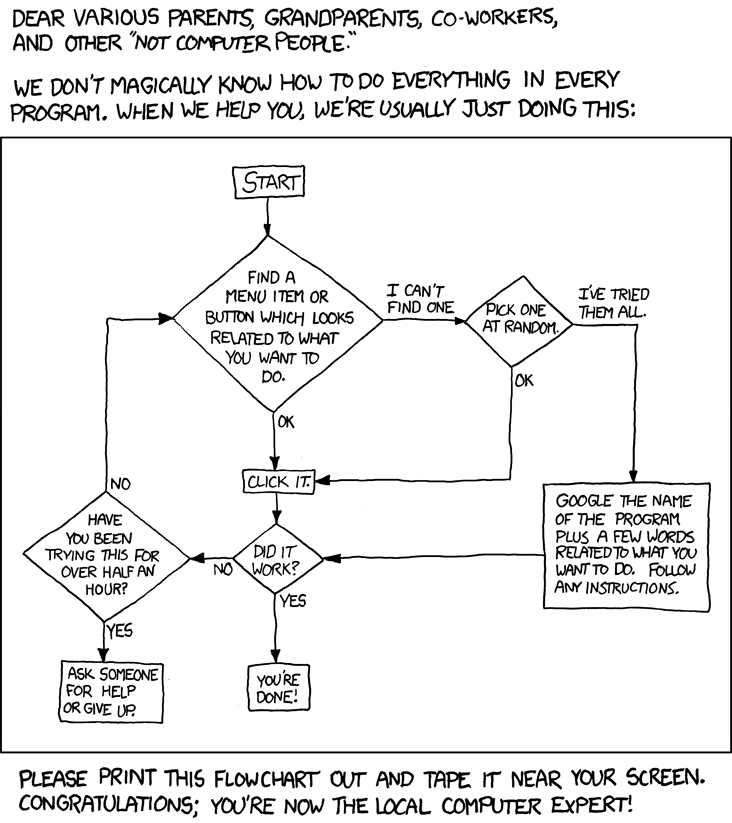
It's a funny thing, owning a macintosh computer. I am not a computer expert- I click things in a semi-logical progression, then google it if that doesn't work, then contact a more knowledgeable friend if that doesn't help, and then the friend goes through the same procedure. However. I am the owner of a mac who is considered knowledgeable in the fields of sciences and math, therefore I am a computer expert. I assist several fellow mac owners who bought their computers because a) "It's pretty," b) "My boyfriend told me to," and c) "I heard they were the best, but I don't really know how to use them." I entertain serious doubts about the intelligence of these people. Yes, they made a rather good choice (although OS X is not for everyone, just as Microsoft OS's are not for me), but they didn't even read the pretty little booklet that comes with the thing!
I had to show someone how to use exposé. She was using spaces to store all her open applications, and asked me if there was a shortcut... "Yeah. Four-finger swipe on your trackpad." She was entranced by the possibilities, reminding me that not everyone hits all the buttons to see what they do as soon as they get a new computer. If she had, she would have found this mac institution as soon as she hit the F3 key.
So this is something of a tribute to all of you who are kind of forced into this role of "tech support" for your friends and family and acquaintances and friends' friends... Enjoy this comic, then wish that you had the nerve to actually give it to someone.
Cheers,
Anikka
I enjoy this new OS, although I had only had this computer for a month before it came out. As stated by several people, blogs, and Apple designers, the main benefits are "under the hood," i.e., load times are faster, etc. The "stacks" (the little icons on the dock that show you everything in them, like "Documents," "Applications," and "Downloads") are different- instead of throwing up a huge menu with all the little icons for programmes and files squashed onto the screen, the stacks have scrolling. Now, you have a limited view of your icons, but they are nice and visible.
I'm not too sure about this feature. I kind of miss the awe-inspiring feeling of seeing all the programmes cluttering up my hard drive in one glance, and it was harder to skip over the desired icon when they were all visible at the same time. I understand why this change was made (so that people with lots of programmes and small screens can see), but can I change it back? I don't have that many programmes...
When I installed the new operating system, I was informed that I needed to back up my computer. This involved going out and buying a hard drive, much to the astonishment of a friend who literally has hard drives laying around at his house. Neither of us will ever cease to be amazed by the number of hard drives in the other's house... A Windows-using family member also bought a hard drive, and made me even happier for my mac. The external hard drive came with a special programme for windows-running computers that syncs with the computer's hard drive and compresses the files, making it possible to view photos and such from the external hard drive... But very, very difficult. They couldn't view thumbnails or navigate from one photo to another without exiting the viewer and clicking a new icon. My external hard drive, however, simply made itself available to Time Machine, which neatly copied the computer's hard drive to a folder in the external hard drive, which I cleverly labeled "Time Machine Backups". The rest of the external hard drive holds things that I don't want cluttering up the hard drive of the computer, such as back-ups of my favourite DVDs. My back-up experience was quick and painless, while my unfortunate family member is still struggling with his over two months later.
So that's Snow Leopard and my experiences with it.
Now I rant about the irony of mac owners.
It's a funny thing, owning a macintosh computer. I am not a computer expert- I click things in a semi-logical progression, then google it if that doesn't work, then contact a more knowledgeable friend if that doesn't help, and then the friend goes through the same procedure. However. I am the owner of a mac who is considered knowledgeable in the fields of sciences and math, therefore I am a computer expert. I assist several fellow mac owners who bought their computers because a) "It's pretty," b) "My boyfriend told me to," and c) "I heard they were the best, but I don't really know how to use them." I entertain serious doubts about the intelligence of these people. Yes, they made a rather good choice (although OS X is not for everyone, just as Microsoft OS's are not for me), but they didn't even read the pretty little booklet that comes with the thing!
I had to show someone how to use exposé. She was using spaces to store all her open applications, and asked me if there was a shortcut... "Yeah. Four-finger swipe on your trackpad." She was entranced by the possibilities, reminding me that not everyone hits all the buttons to see what they do as soon as they get a new computer. If she had, she would have found this mac institution as soon as she hit the F3 key.
So this is something of a tribute to all of you who are kind of forced into this role of "tech support" for your friends and family and acquaintances and friends' friends... Enjoy this comic, then wish that you had the nerve to actually give it to someone.
Cheers,
Anikka
Saturday, August 29, 2009
Snow Leopard Coming Soon
Wednesday, July 29, 2009
Digression
This post has nothing to do with computers, nor does it relate to apple in any way. It's not even something that most people need to know. But for those of us out there who get sick of cutesy japanese demon cats, you are not alone. I found Hello Kitty Hell (strikethrough)after hours of searching the internets(/strikethrough) when User Friendly's "Laugh of the Day" arrived on my homepage.
For those of you who care, yes, I am perfectly aware that that was not real HTML back there with the strikethrough. And I don't care. I mean, if someone wants to tell me how to make the strikethroughs work, be my guest, but don't leave nasty messages mocking my lack of skill. Not seriously, in any case. If you annoy me too much, I can always delete your comments. I think. I can try, in any case, and if that doesn't work, then I'll just make more posts berating you.
For those of you who care, yes, I am perfectly aware that that was not real HTML back there with the strikethrough. And I don't care. I mean, if someone wants to tell me how to make the strikethroughs work, be my guest, but don't leave nasty messages mocking my lack of skill. Not seriously, in any case. If you annoy me too much, I can always delete your comments. I think. I can try, in any case, and if that doesn't work, then I'll just make more posts berating you.
Saturday, July 11, 2009
MacBook Pro
Yes, the day has finally come. I am now the proud owner of a 15" MacBook Pro.
It does take a bit of getting used to after using only Windows, but it's worth the acclimation stress. In fact, some things are simple enough that I look for the hard way to do them- the only way that Windows ever did them. Downloading things like Firefox and Picasa was a bit tricky, as I could click "Download" well enough, but was unable to make them run. It turned out that all I had to do was drag the icon into the "applications" folder and go...
It's lucky for me that I have a friend with a Mac, or I'd still be sitting here trying to get Firefox to run... But once things are explained, they are almost ridiculously easy to do. Drag and drop. Drag and drop. Go into settings to make clicking easier with the trackpad (Which I love, by the way. It is very responsive and almost makes a USB mouse unnecessary.).
Possibly my favourite feature is the keyboard. I shopped around, looking at less expensive PCs, and the main killer was the keyboard. Most of the laptops I played with had slow, sticky-feeling keyboards. Typing was a ponderous undertaking, like wading through molasses. This keyboard is light and "clicky" with its individual keys, and responds nicely to pressure.
One thing I wouldn't mind is more USB ports. This model only has two, along with an SD slot, headphone jack, etc. Two is a printer and a mouse. No room for jumpdrive or camera. An external USB device is soon to follow. Slightly less portable, but oh-so handy for those plugged-in moments.
I'm still working through the transfer of data from the desktop PC to the MacBook, so more on this is likely to follow!
That exclamation point was facetious, and if you didn't figure that out, you shouldn't be reading this. I will, however, permit you to keep reading if you have to look up "facetious" in the dictionary.
It does take a bit of getting used to after using only Windows, but it's worth the acclimation stress. In fact, some things are simple enough that I look for the hard way to do them- the only way that Windows ever did them. Downloading things like Firefox and Picasa was a bit tricky, as I could click "Download" well enough, but was unable to make them run. It turned out that all I had to do was drag the icon into the "applications" folder and go...
It's lucky for me that I have a friend with a Mac, or I'd still be sitting here trying to get Firefox to run... But once things are explained, they are almost ridiculously easy to do. Drag and drop. Drag and drop. Go into settings to make clicking easier with the trackpad (Which I love, by the way. It is very responsive and almost makes a USB mouse unnecessary.).
Possibly my favourite feature is the keyboard. I shopped around, looking at less expensive PCs, and the main killer was the keyboard. Most of the laptops I played with had slow, sticky-feeling keyboards. Typing was a ponderous undertaking, like wading through molasses. This keyboard is light and "clicky" with its individual keys, and responds nicely to pressure.
One thing I wouldn't mind is more USB ports. This model only has two, along with an SD slot, headphone jack, etc. Two is a printer and a mouse. No room for jumpdrive or camera. An external USB device is soon to follow. Slightly less portable, but oh-so handy for those plugged-in moments.
I'm still working through the transfer of data from the desktop PC to the MacBook, so more on this is likely to follow!
That exclamation point was facetious, and if you didn't figure that out, you shouldn't be reading this. I will, however, permit you to keep reading if you have to look up "facetious" in the dictionary.
Subscribe to:
Posts (Atom)